
VLANs and L2
How to see which VLANs a trunk allows
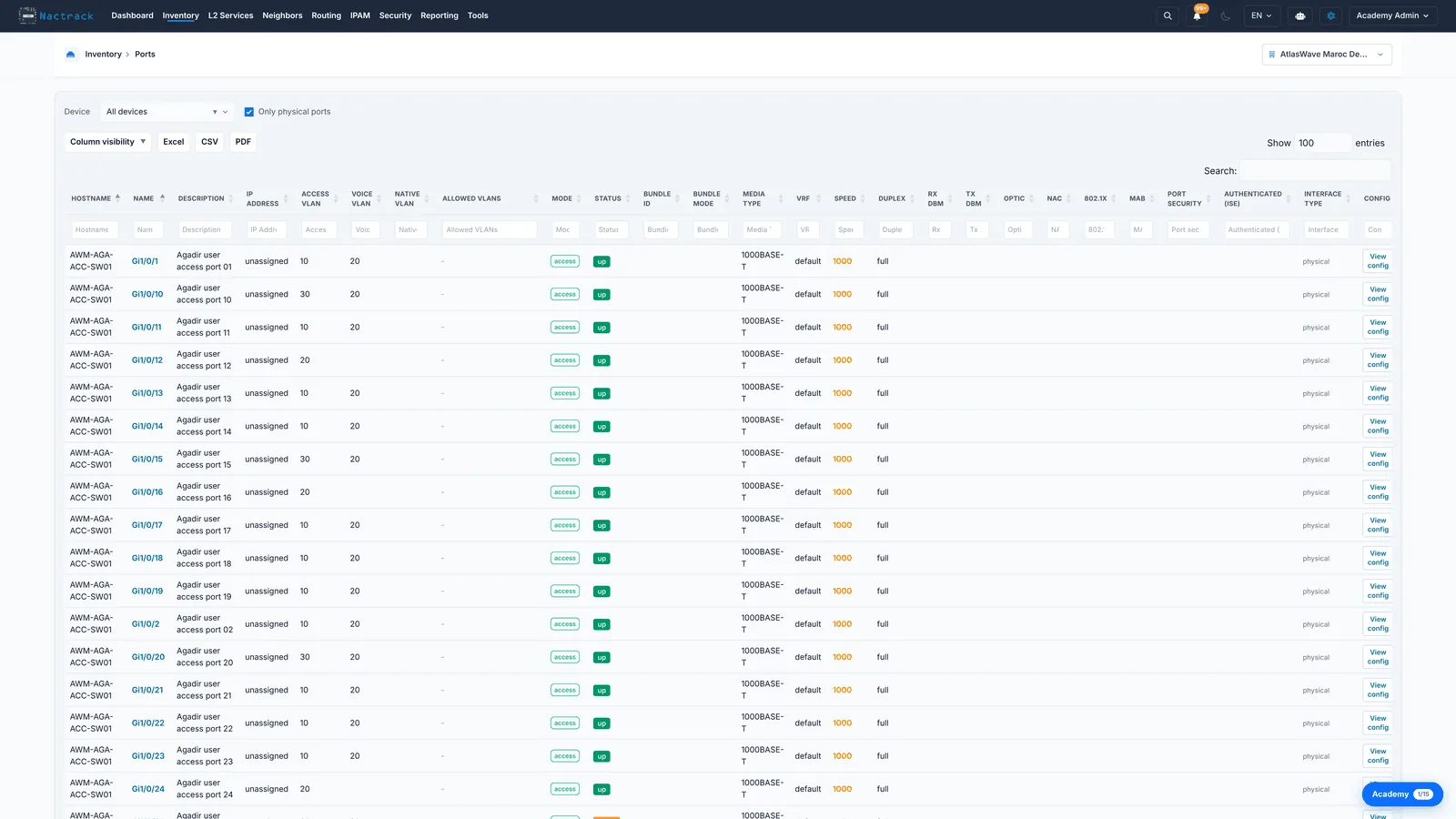
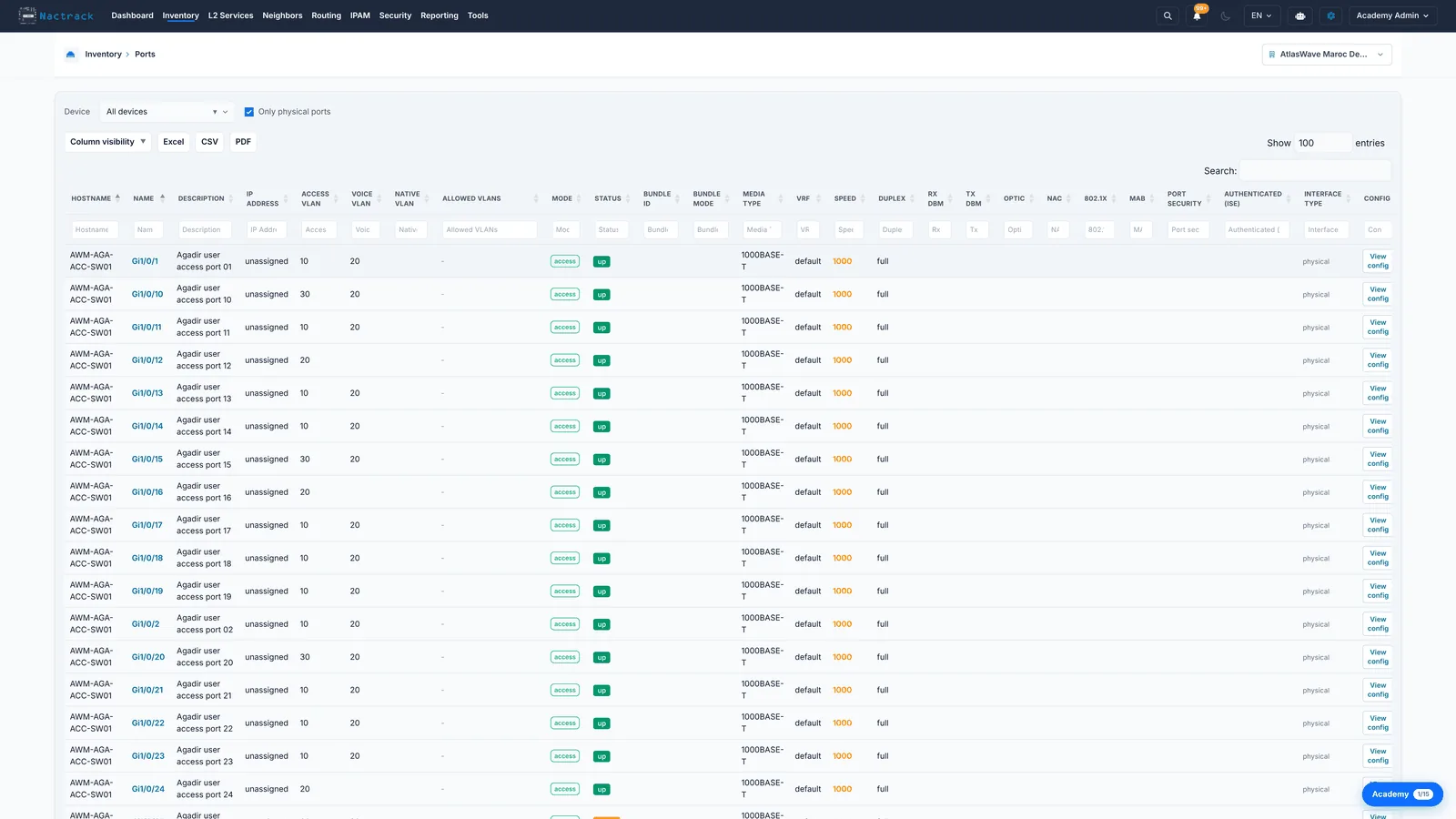
A VLAN reaches a remote switch only if every trunk along the way allows it, so when a VLAN is missing at one site the allowed list is the first thing to check. The Ports inventory shows the allowed VLANs and the native VLAN for every trunk in the estate, side by side.
Before you start
What you need
- Module required: inventory.
- Permission required: view_inventory.
- all
1. Open Inventory then Ports
2. Read the VLAN columns
The limits
What this view does not tell you
- A VLAN present in the allowed list is not necessarily defined on the switch. The allowed list is configuration text; it can name a VLAN that was never created, and the trunk will still carry nothing for it.
- Nothing here counts the VLANs on a trunk or ranks trunks by how many they carry. The allowed list is shown as it was configured, and you read it yourself.