How to search with a partial MAC address to find every device from one manufacturer
The first three bytes of a MAC address identify the manufacturer. Searching on that prefix with a wildcard turns MAC Finder into an inventory of everything from one vendor that is plugged into your network - useful when a firmware advisory or a recall names a manufacturer rather than a list of serial numbers.
The same procedure as a recording, subtitled in English and French. This recording predates the latest revision of the steps: it opens on a screen the written guide no longer includes.
Before you start
What you need
Module required: core.
Permission required: use_troubleshooting.
all
1. Open the Tools menu
app.nactrack.com/troubleshooting/macfinder
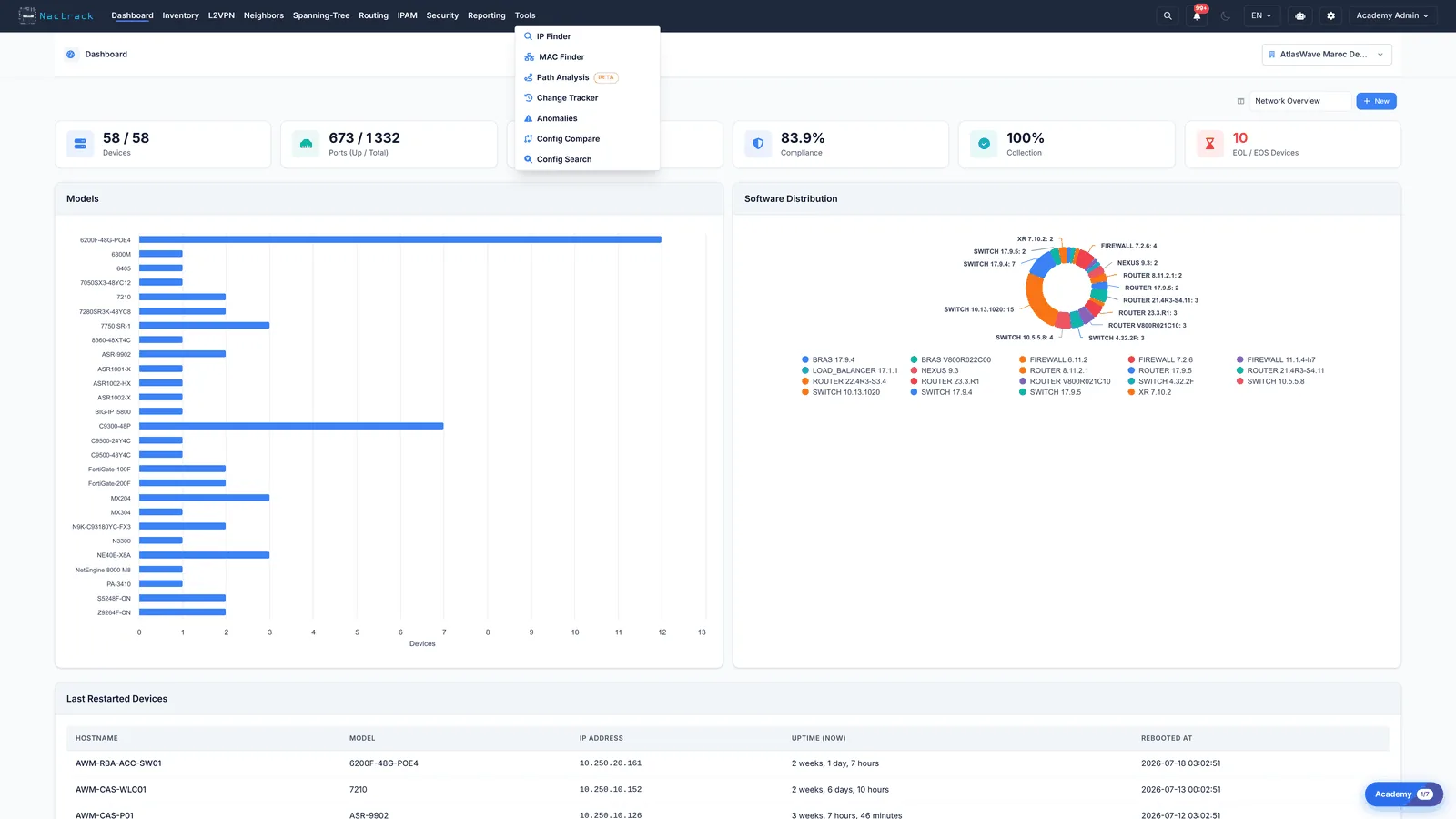
Open the Tools menu. MAC Finder is the same tool as for a full address, and it accepts a partial one, which is what makes it useful when all you have is a vendor prefix.
2. Choose MAC Finder
app.nactrack.com/troubleshooting/macfinder
Choose MAC Finder. Notice the hint under the field: wildcards are supported. That single line is what turns a lookup tool into a survey tool.
3. Type a vendor prefix
app.nactrack.com/troubleshooting/macfinder
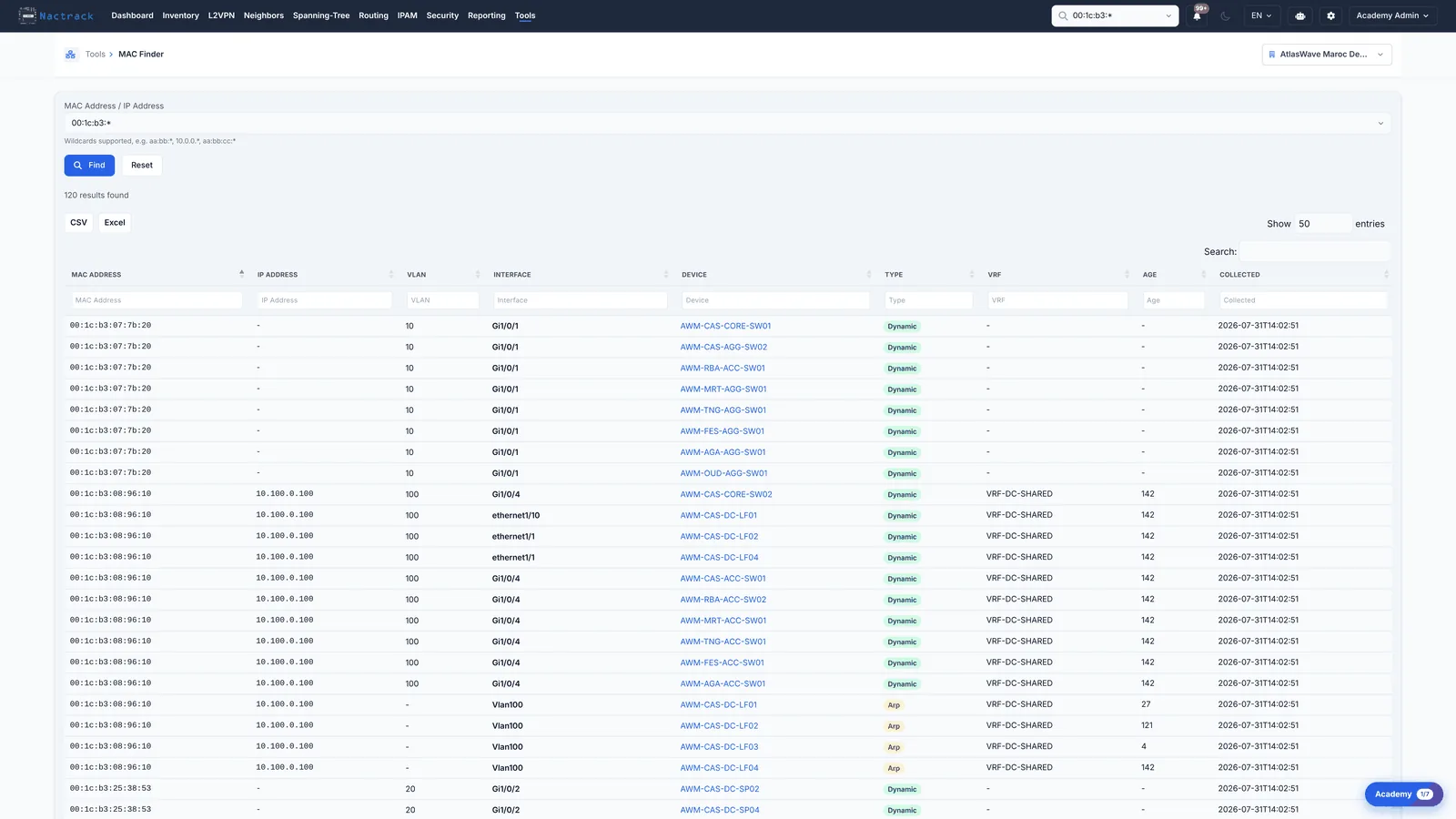
Type the manufacturer prefix followed by a star. Three bytes is the usual length of a vendor prefix, but any partial address works.
4. Read the results
app.nactrack.com/troubleshooting/macfinder
Click Find. Every endpoint whose address starts with that prefix comes back, across every switch and every site, each with the port it is connected to. What was one answer is now a population you can count.
The limits
What this view does not tell you
A manufacturer prefix is not proof of a device type. It tells you who made the network chip, which on a virtualised host is the hypervisor vendor rather than the machine's.
Results are capped for display. Narrow the prefix, or filter by device, if the list is longer than the page shows.