How to find which switch and port a MAC address is on
A user reports a problem and all you have is a MAC address. MAC Finder searches every MAC table collected across the estate at once and tells you the device, the interface and the VLAN it was learned on. It reads the last collection, not the live switch, so the answer is as recent as your last collect round.
The same procedure as a recording, subtitled in English and French. This recording predates the latest revision of the steps: it opens on a screen the written guide no longer includes.
Before you start
What you need
Module required: core.
Permission required: use_troubleshooting.
all
1. Open the Tools menu
app.nactrack.com/troubleshooting/macfinder
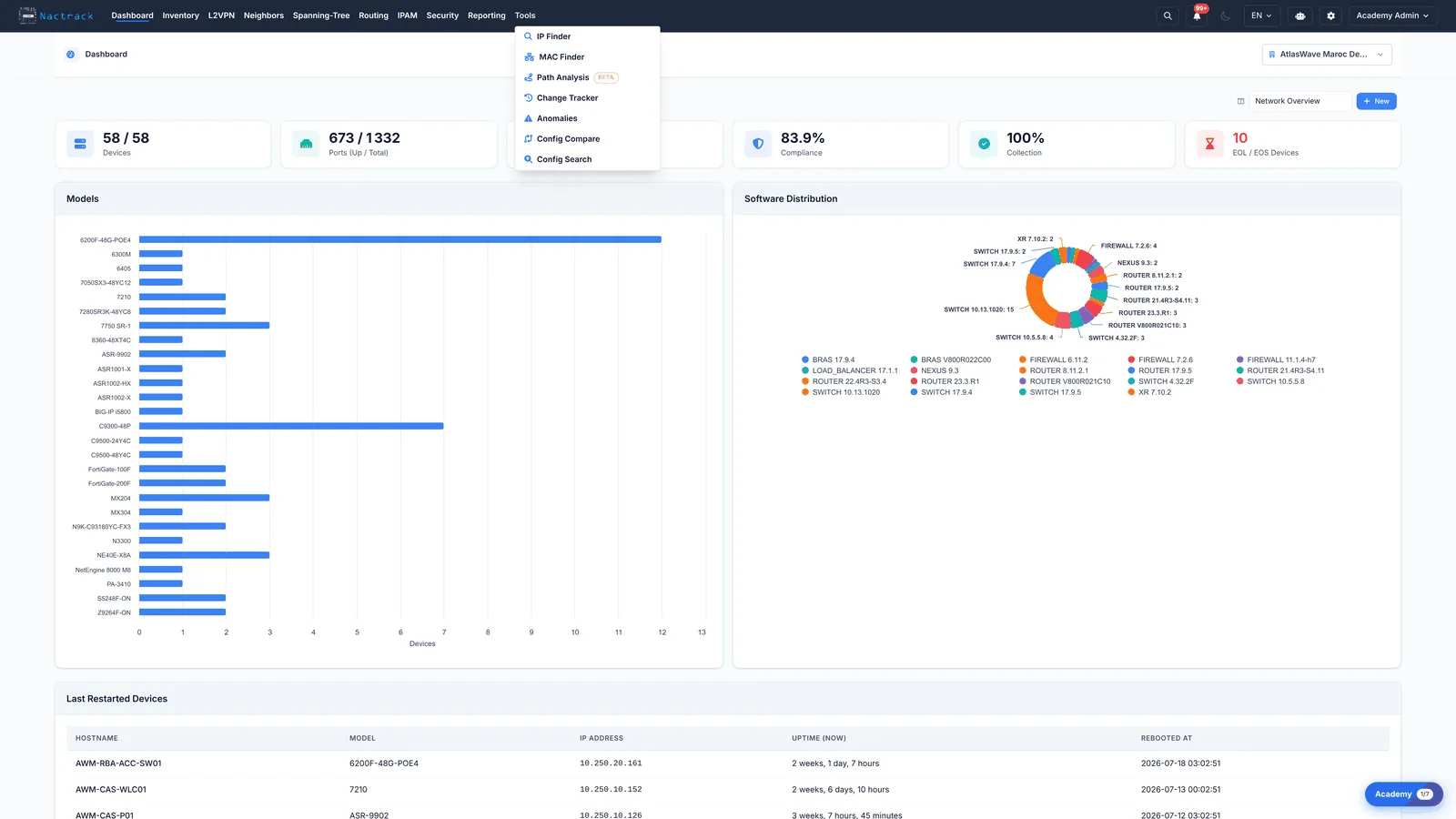
Open the Tools menu in the top navigation bar. This is where NacTrack keeps the tools that answer a question about one specific thing, rather than showing you a whole inventory.
2. Choose MAC Finder
app.nactrack.com/troubleshooting/macfinder
Choose MAC Finder. The page opens empty, with a single search box: it holds no list of its own and searches only what you ask it for. Everything it returns comes from the MAC tables collected from your switches.
3. Type the MAC address
app.nactrack.com/troubleshooting/macfinder
Type the MAC address you are looking for. Colon, dot and dash formats are all accepted, so you can paste it exactly as your ticket has it, without reformatting.
4. Read the results
app.nactrack.com/troubleshooting/macfinder
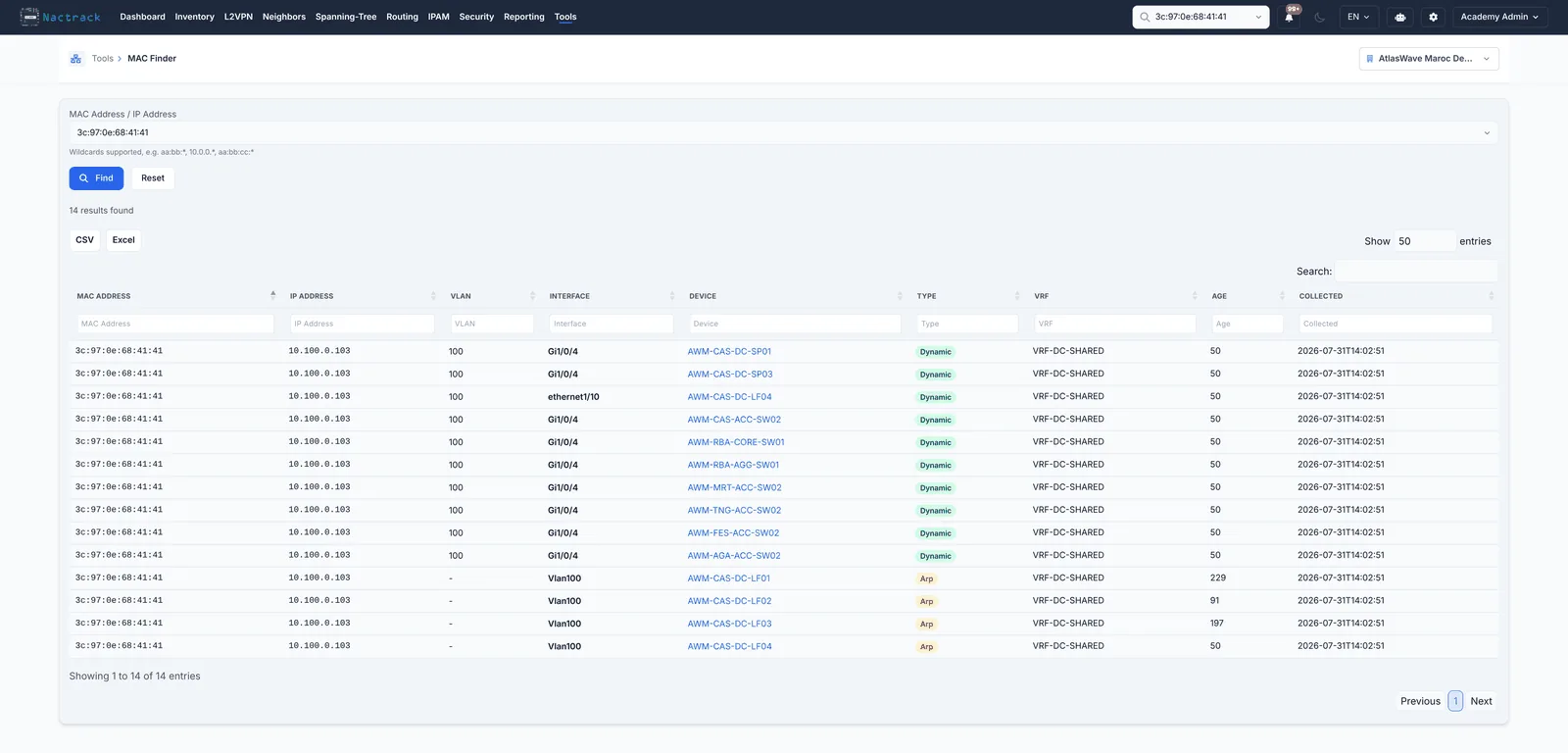
Click Find. Every switch that learned this address answers at once. Read the row left to right: the address, the IP behind it, the VLAN, the interface, the device holding that interface, the VRF, and how long ago it was seen.
The limits
What this view does not tell you
One MAC normally returns several rows. Every switch on the path learned it, so uplinks appear alongside the access port. The access port is the one where the interface is not a trunk toward another switch.
The IP column is filled in only when the same address was also seen in an ARP table. An empty IP means the endpoint is layer 2 only, or no router in the path has ARPed it.