
Security
How to see which ports are configured for 802.1X
802.1X decides whether a device plugged into a wall socket is allowed onto the network at all. NacTrack reads that configuration back off the switches, so you can see where port authentication was actually deployed rather than where it was meant to be. The gap between the two is usually the point: an access switch installed after the rollout, or a floor that was skipped, keeps its ports open to anyone with a cable.
Before you start
What you need
- Module required: beta_testing.
- Permission required: view_inventory.
- Cisco access switches; the fields come from interface configuration
1. Read the list
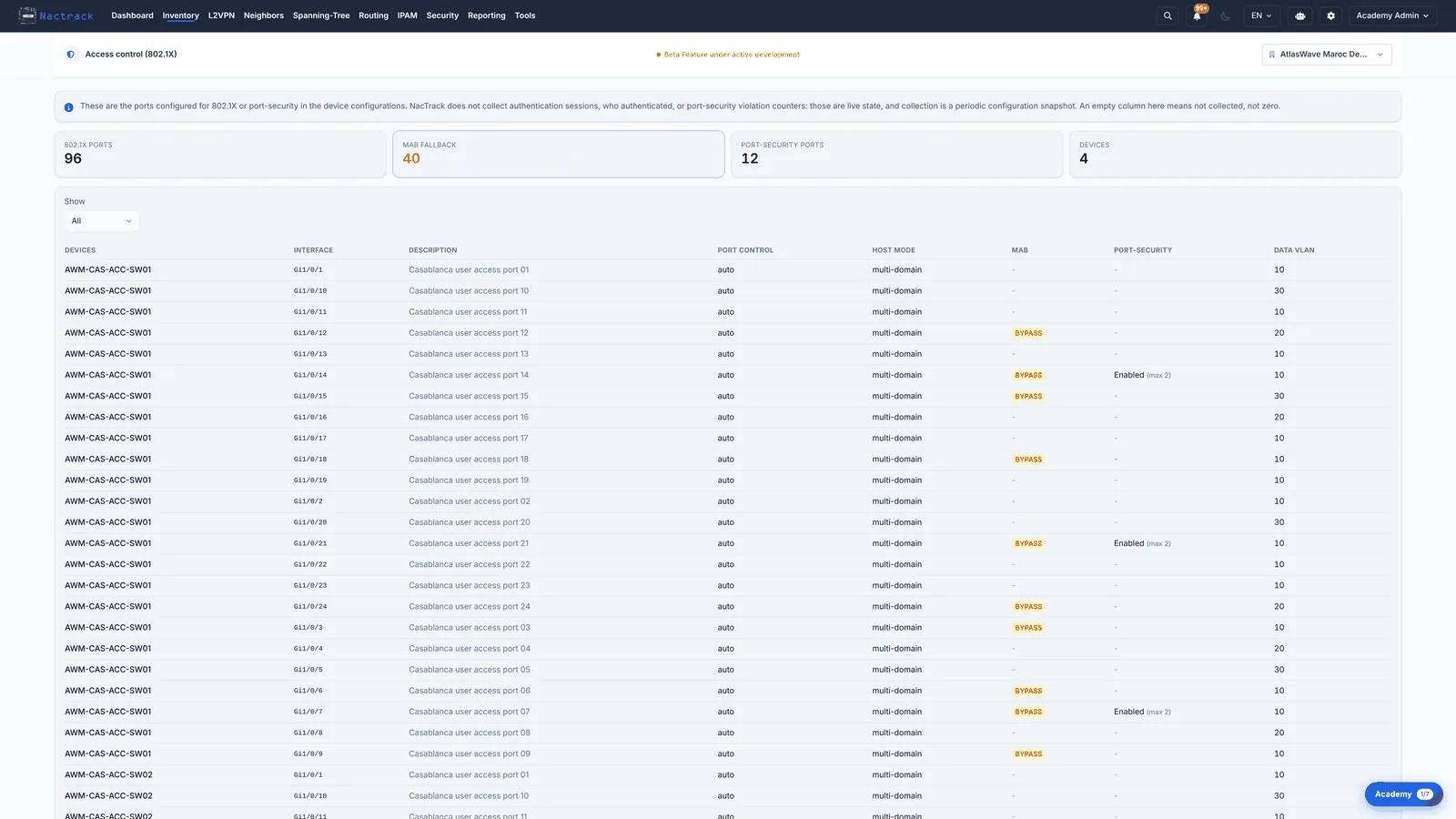
2. Read Port Control and Host Mode
The limits
What this view does not tell you
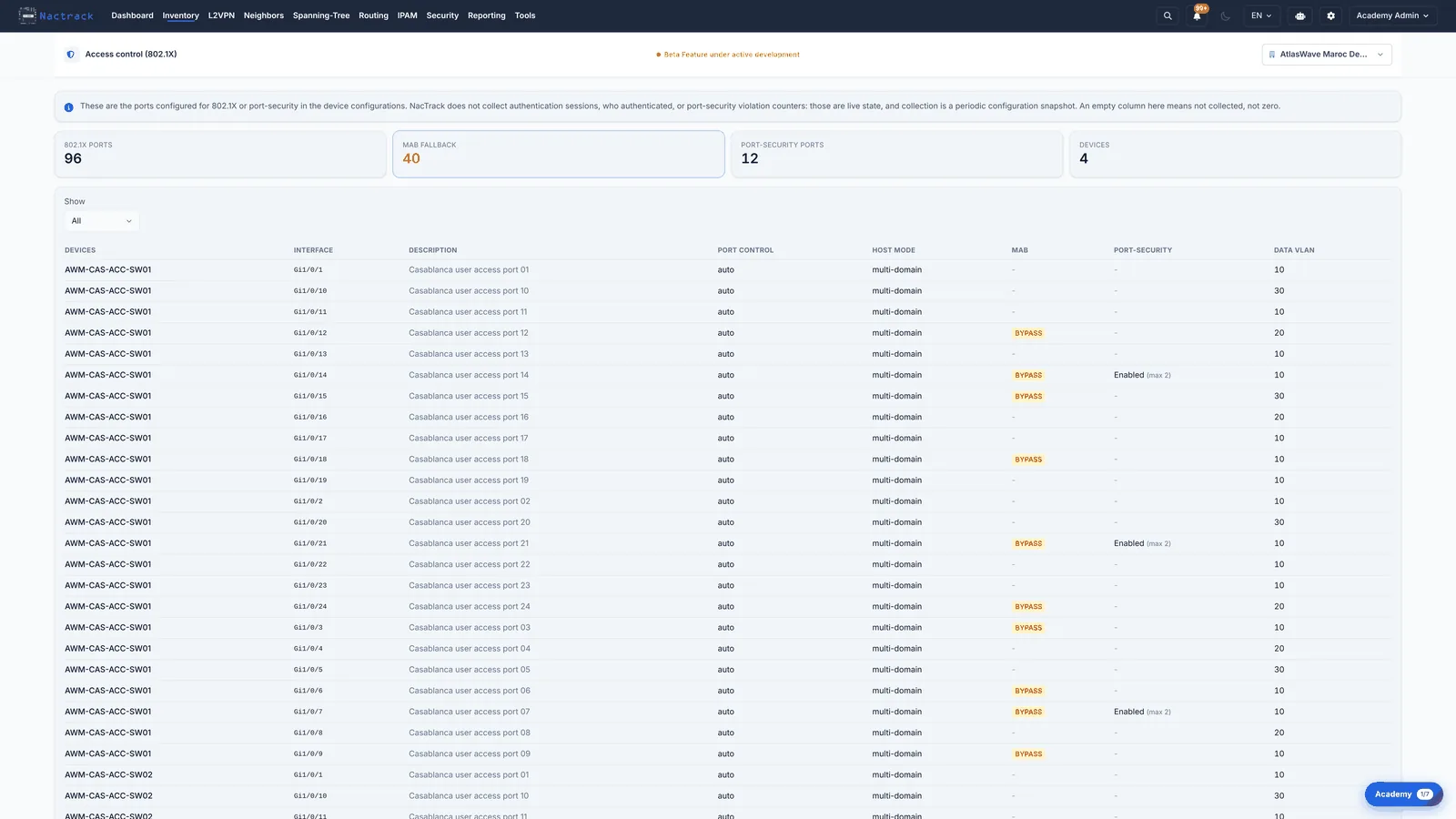
- This is configuration, not activity. A port shown as auto is set up to demand authentication; the page does not say whether anything authenticated on it, or whether a supplicant ever tried.
- A switch that is missing from the list is not necessarily unprotected. It may be a core or aggregation switch with no user-facing ports, where 802.1X would have nothing to authenticate.